#
Entities
#
Entities
Entities are the characters of your map. They can be your player or any object on the map, like switches, treasures, and whatever you want.
On the Entities tab, you will notice that they are organized in banks, like Variable Banks. Click on the New Bank button, set its name and description, and then click on Create Bank. You can edit them later. Click on your new bank to start creating entities.
When you create an entity or update it, make sure to click on the Create Entity or Update Entity button at the end of the page. This will save your changes.
#
Creating entities
Inside your bank, click on the New button on the left panel to add a new entity. If you are on mobile, the left panel is collapsed. Click on the top left floating button to open it.
These are the properties of entities:
- Name. Name of the entity
- Is Static. Static entities are for decorative purposes, like trees and houses. They are not interactable.
- Outfits.
#
Outfits
You can set outfits for each entity. To add new ones, click on the + button on the right of your outfits. You can set them as default by clicking on the Set as Default button.
Outfits have multiple components: let’s take a look:
Outfits have a Sprite. You must upload them on the Assets tab, in the last row. You will notice that you can use two types of sprites: Single and Spritesheet.
- Single sprites have no animation. The direction or movement of the entity won’t change visuals.
- Spritesheet sprites are animated. The direction or movement of the entity does change visuals.
#
Spritesheet
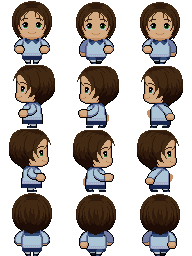
Spritesheets are 3x4 grids, and each grid contains a frame of animation. Each column is a frame, and each row is a direction of movement.
- Row 1 is the down direction.
- Row 2 is the left direction.
- Row 3 is the right direction.
- Row 4 is the up direction.
- Column 0 is the first frame. It represents the idle state, no movement.
- Columns 1 and 2 are movement frames.
The next image is an example of the spritesheet expected by the Novel Builder. Make sure the image’s aspect ratio is 3:4. You can test your animations on the next section of the Outfit form.
#
Configurations
Visibility. Here, set the pivot position of the outfit. This central point represents the position of the entity. The Play Animation on Idle checkbox will play the spritesheet animation even when the entity is not moving. When checked, the first frame will be included in the animation.
Interaction. Set the entity’s interaction radius. Remember that static entities can’t be interacted with.
Collision. Set the entity’s collider shape. You can choose between point, circle, and box.
#
Setting the player
On the Player tab, set the entity that will be controlled by the player. The player will use the entity’s current default outfit.